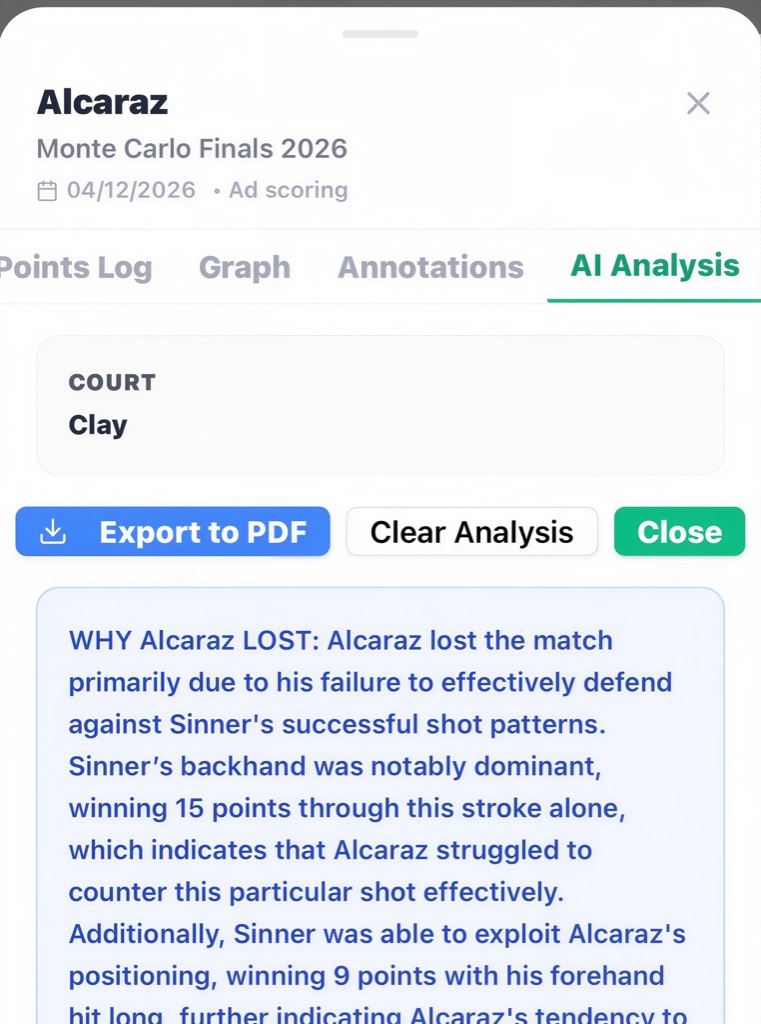
1. Setting Up a Match
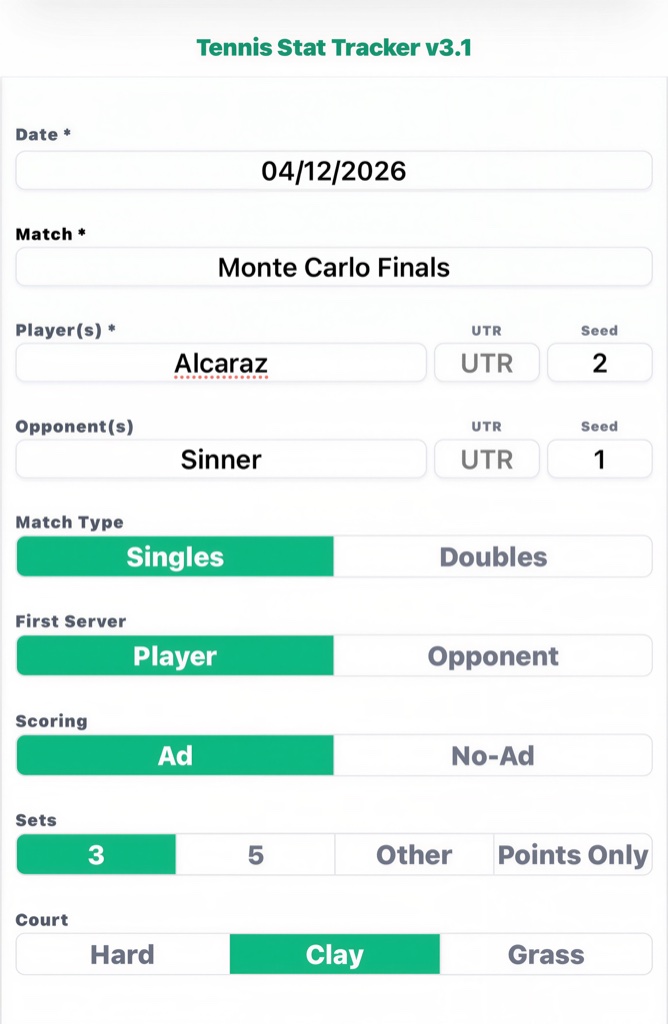
Fill in the match details on the Setup screen. All required fields have * and must have a value entered for "Track" to be enabled. Tap "Track" to begin tracking match.
2. UTR and Seed
Fill in UTR and tournament Seed (optional). AI will take into account UTR and Seed when doing coaching advice.
3. Other
You can choose this format for matches that are not best 2/3 or 3/5. When "Other" chosen you must specify when a tie-break begins so that Tennis Traker can keep accurate scoring.
4. Points Only
When this is chosen, scoring will only keep track of points won or lost and not keep score on games or sets. Used during practice scrimmage matches or when you only want to analyze won or lost points.
5. Tracking Points
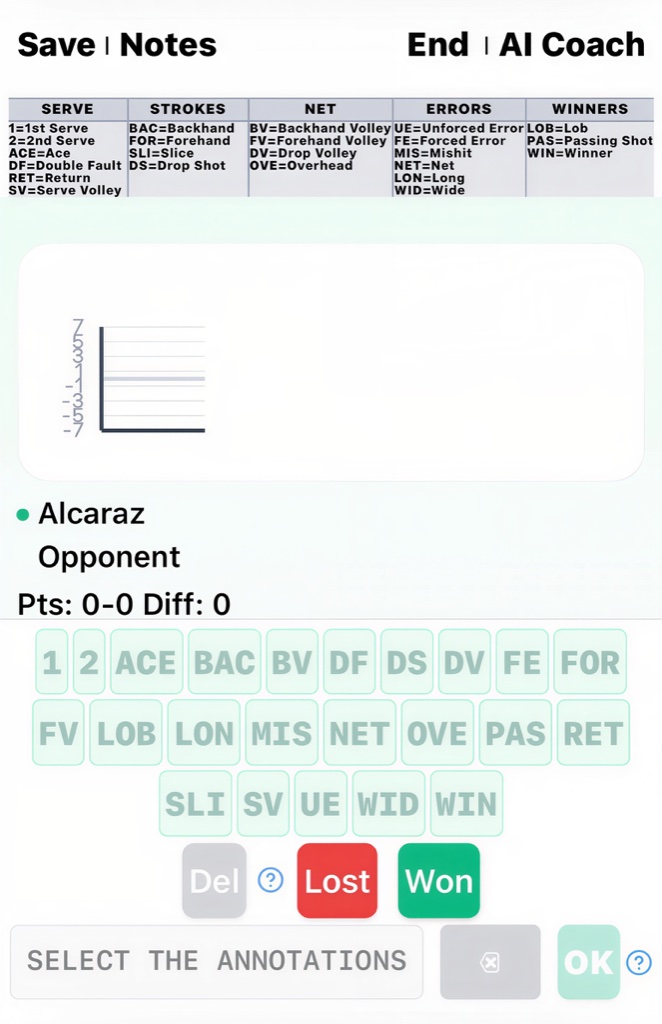
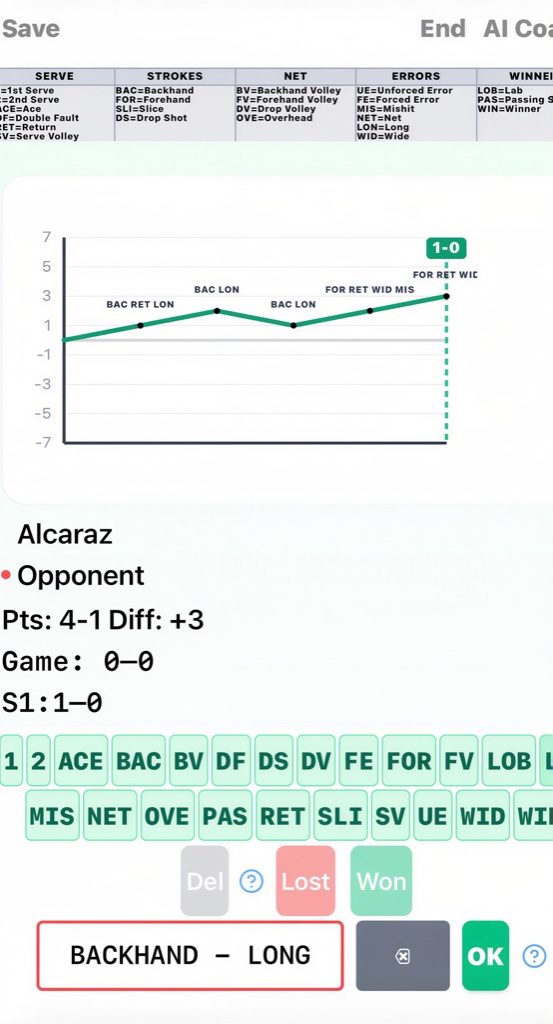
On the Tracker screen, tap "Lost" or "Won" from the perspective of the Player you are tracking. The score and graph will update automatically.
6. Adding Annotations
After each point you can multi-select annotations (for example, DF for Double Fault, BAC for Backhand, FE for Forced Error) to describe how the point was won or lost for the Player you are tracking. Annotations are optional. At the top of Tracking screen there is a cheat-sheet for annotation abbreviations. If annotations are selected for each point, AI can provide more detailed analysis of the Player. You can multi-select up to 5 annotations for each point. As you select an annotation, the full annotation description will be shown in the annotation box.
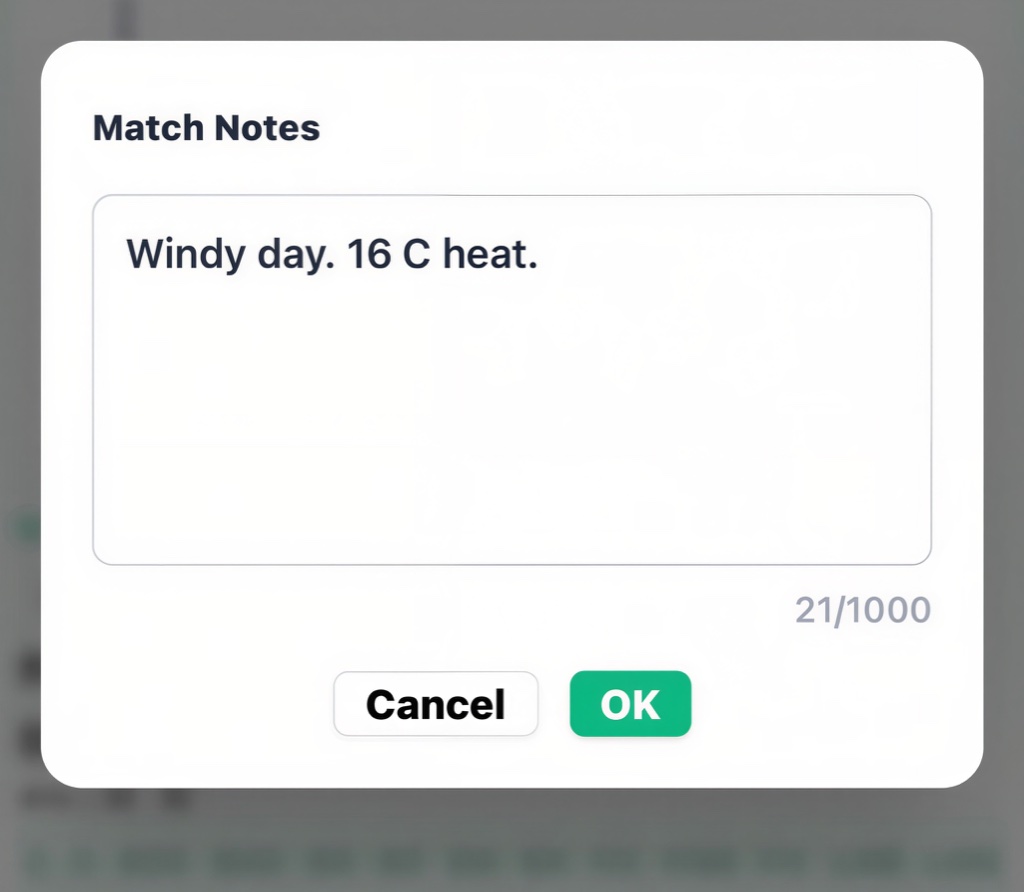
7. Notes
On the Tracker screen, you can select "Notes" anytime you want to enter notes for the match. Notes you entered will be printed out in the PDF export so you can note details of the match.
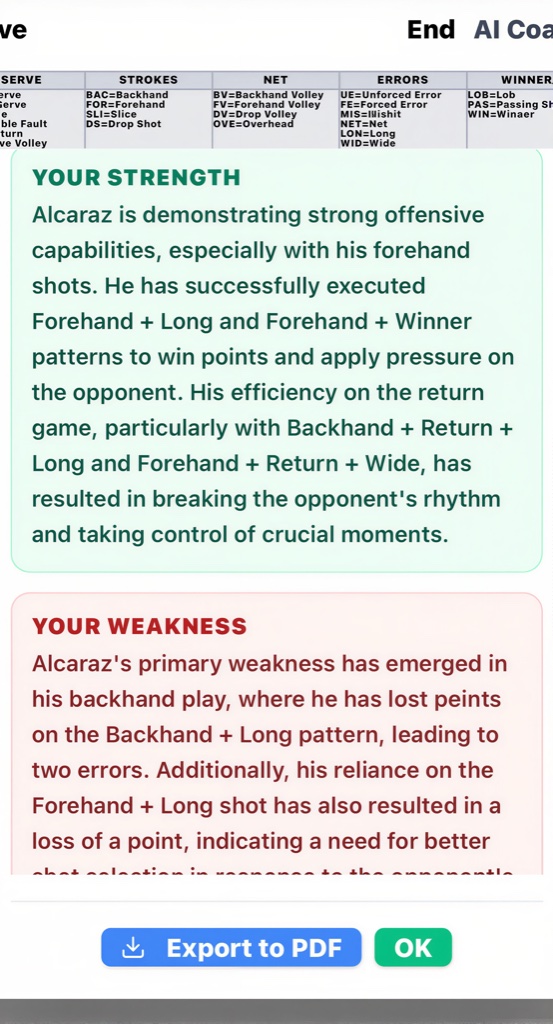
8. AI Coaching
On the Tracker screen, you can select "AI Coach". Coach will give tactical analysis for the Player based on each point won or lost. If annotations are entered for each point, Coach can give real-time tactical advice based on the Player losing or winning the match in progress. Coach needs at least 10 points played before advice can be given.
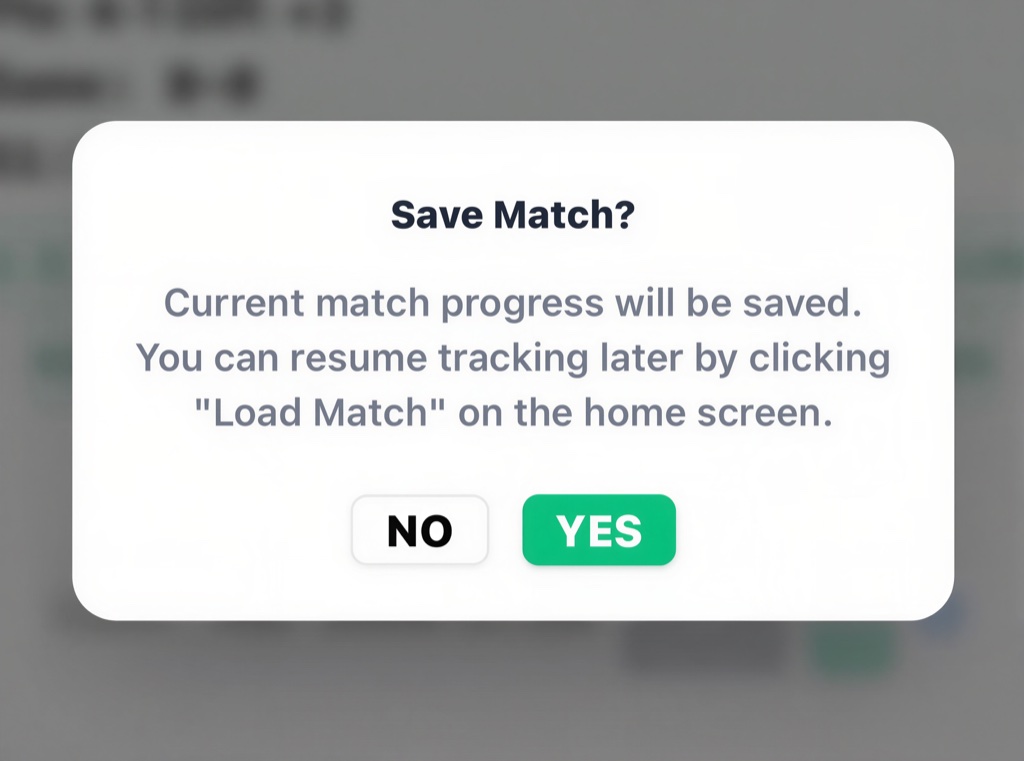
9. Saving a Match
Tap "Save" on the Tracker screen to save your progress.
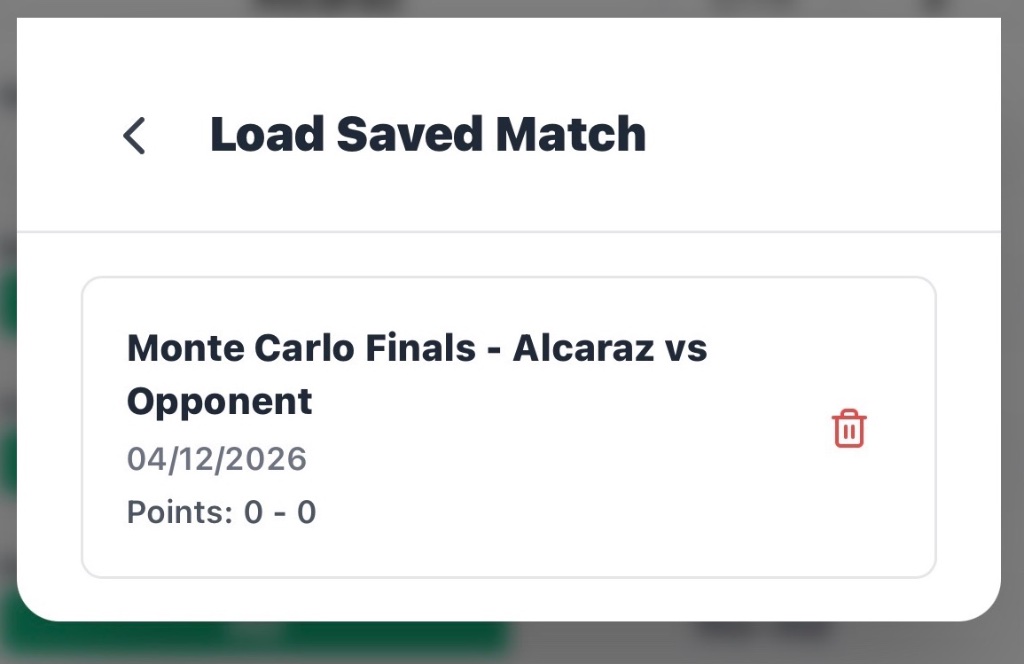
10. Loading a Match
Tap "Load Match" on the home screen to load a saved match. After match loaded you will be taken to the tracking screen to resume the match.
11. Viewing Match History
The History tab shows all completed matches. Tap a match to see the "Scorecard", "Points Log", "Graph", and "AI Analysis". On "Match History" all annotation abbreviations are converted to their full description (for example, DF to Double Fault, BAC to Backhand, FE to Forced Error).
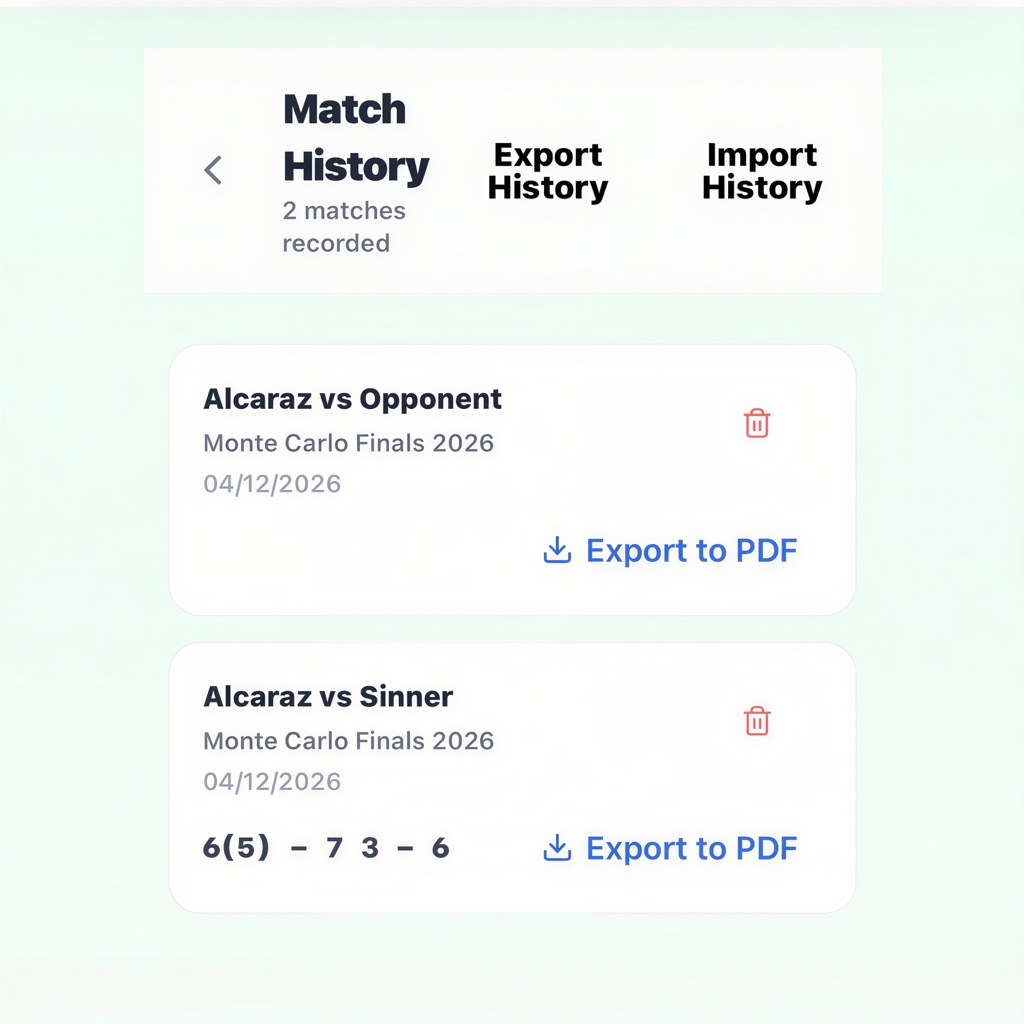
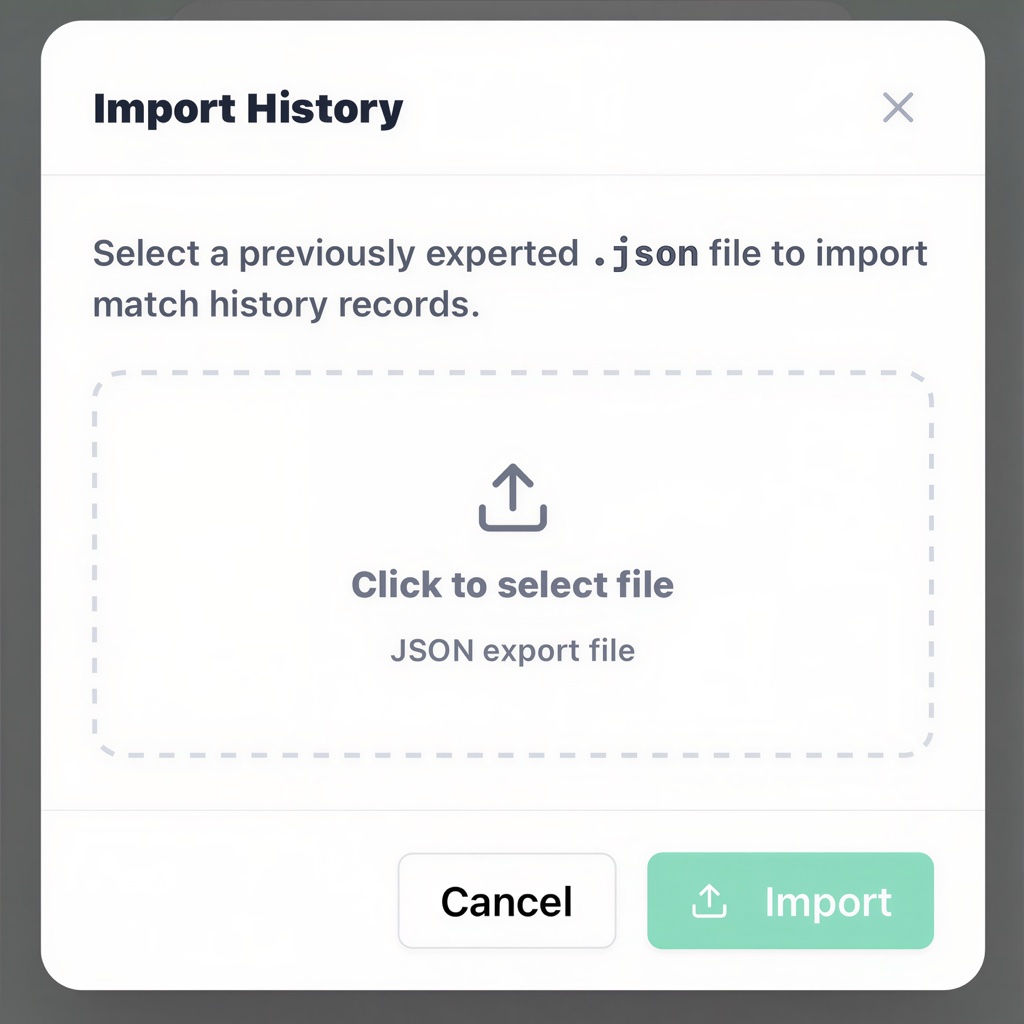
12. Import History
The History tab allows you to import history file for a Player from your local device. If import file exists on your local device you can import to Tennis Stat Tracker.
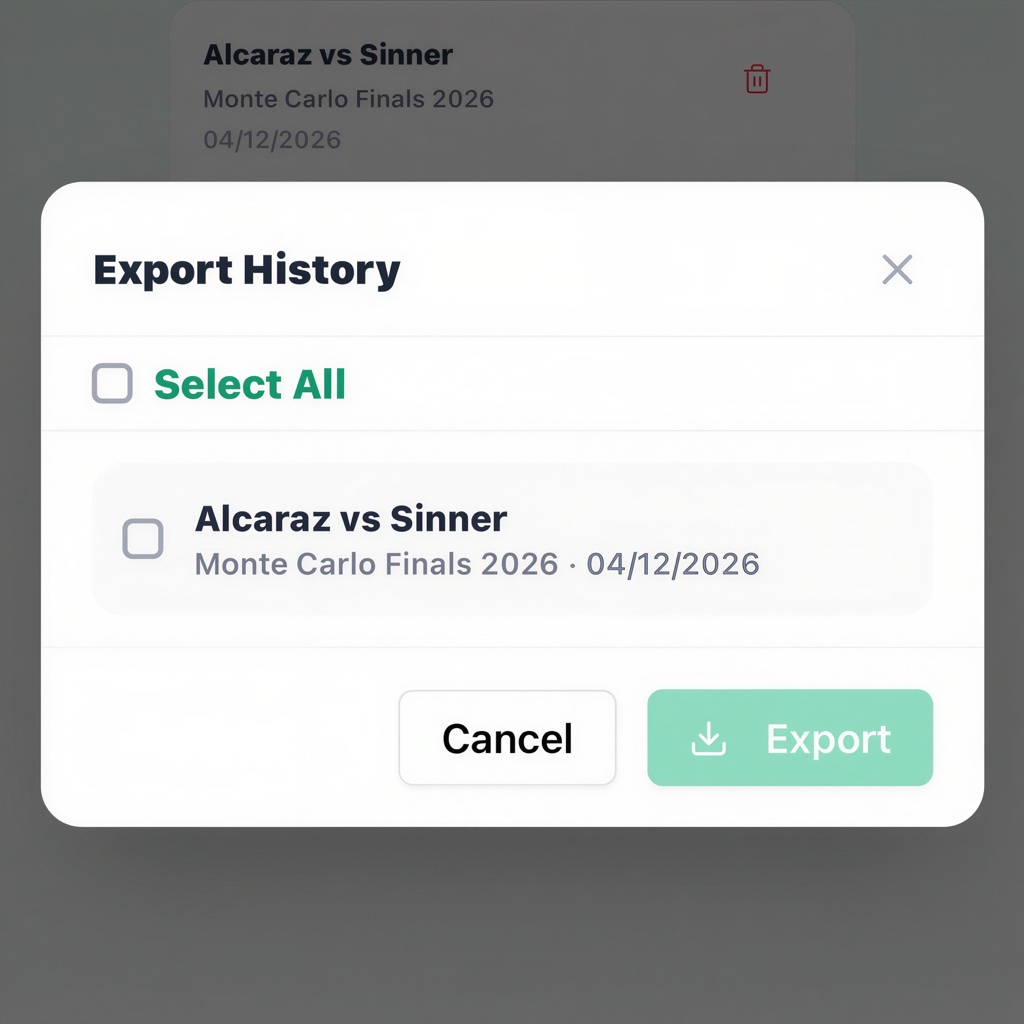
13. Export History
The History tab allows you to export history file of a Player to your local device and send the file to other coaches who use Tennis Stat Tracker.
14. Enable AI
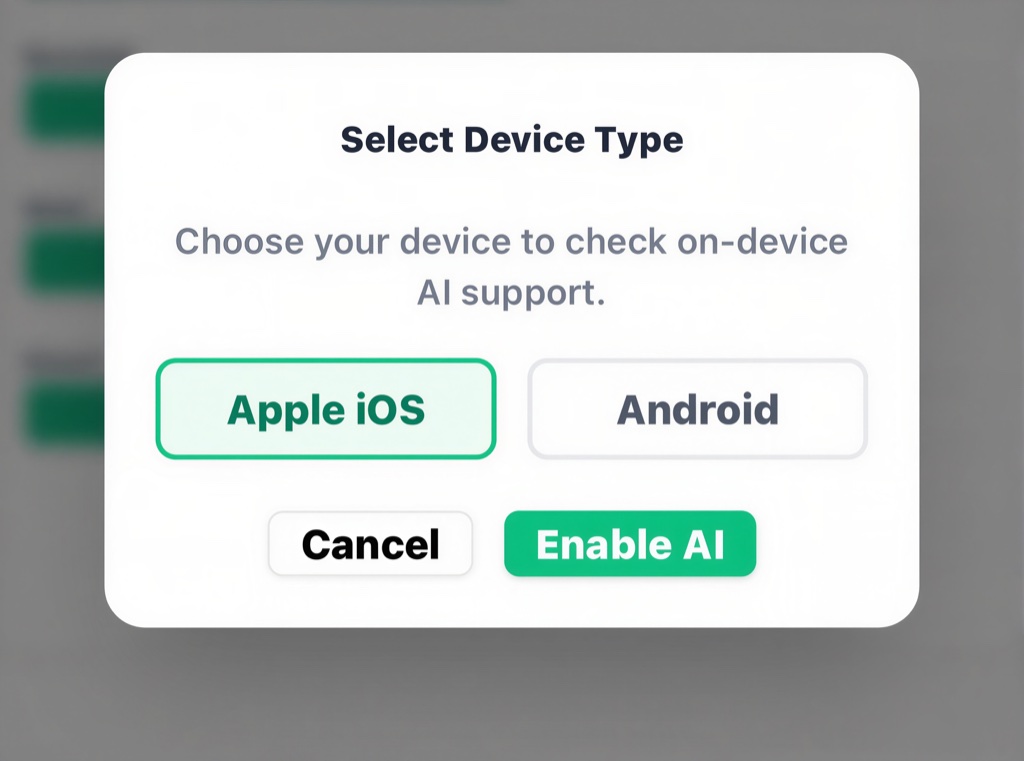
Your mobile device does not have the computing power for AI analysis. You need to have created an account on ChatGPT, Claude or Gemini to use AI features. For "ChatGPT (OpenAI) API Key" click on "+ Create new secret key". Enter value for "Name". For "Project" = "Default Project". For "Permissions" = "Restricted" , for "Model capabilities" = "Write". For "Claude(Anthropic) API Key" click on "+ Create new secret key". For "Gemini (Google) API Key" click on "+ Create new secret key" and create a new project and call it "Tennis Stat Tracker". Cut/paste the API key from the AI vendor into the input box and click on "Save Key". Once your key is accepted, the "AI Coach" and "AI Analysis" links will be enabled.
15. AI Analysis
After a match is saved, open it from "History" and in "AI Analysis" tab, tap "Generate AI Analysis" to get detailed summary of a saved match using AI. Click on "Enable AI" on the Setup screen to enable AI if your device supports AI. The analysis gives detailed summary of Player and Opponent as well as Player weekly practice session suggestions based on analysis of all points lost and won by Player.